Physical Inventory Counting Using a Laptop
Warning: If you're going to use a laptop in Remote mode, make sure you upgrade to Artisan Version 3.5.71 or later. Version 3.5.71 or later has the capability to allow inventory counting with laptops. Upgrades are included if you have a current support plan with CerTek Software Designs, Inc.
This may appear to be a lot of information to read through but the more prepared you are for the Physical Inventory Counting the easier you will find it. Be prepared, do a trial run and make sure you are familiar with the equipment you are using. If you have ANY QUESTIONS please call us (877)723-7835 x2 Mon-Fri 9 am – 6pm Eastern. We also have extended support hours for emergencies (There may be an additional charge); we do not setup equipment during the extended support hours. Please set an appointment if you need help setting up the laptop.
Using a Laptop to Count Inventory
If you are not using a Portable Data Terminal(PDT) to count inventory, you have the option to use a laptop instead. You can borrow the scanner from a cash register and use it to count your inventory. Often this is easier and cheaper than using a PDT.
In Artisan 3.5 you will need to put your Artisan data in remote mode. Please call CerTek for assistance. PLEASE DO NOT USE WIRELESS with 3.5 data!
Once you have it in remote mode:
From the MAIN MENU - > Inventory & Pricing -> Stock Management -> Physical Inventory Counting -> Enter Inventory Counts -> Scan or Key In Individual Items
If you are multi-store, choose the correct location that you are counting.
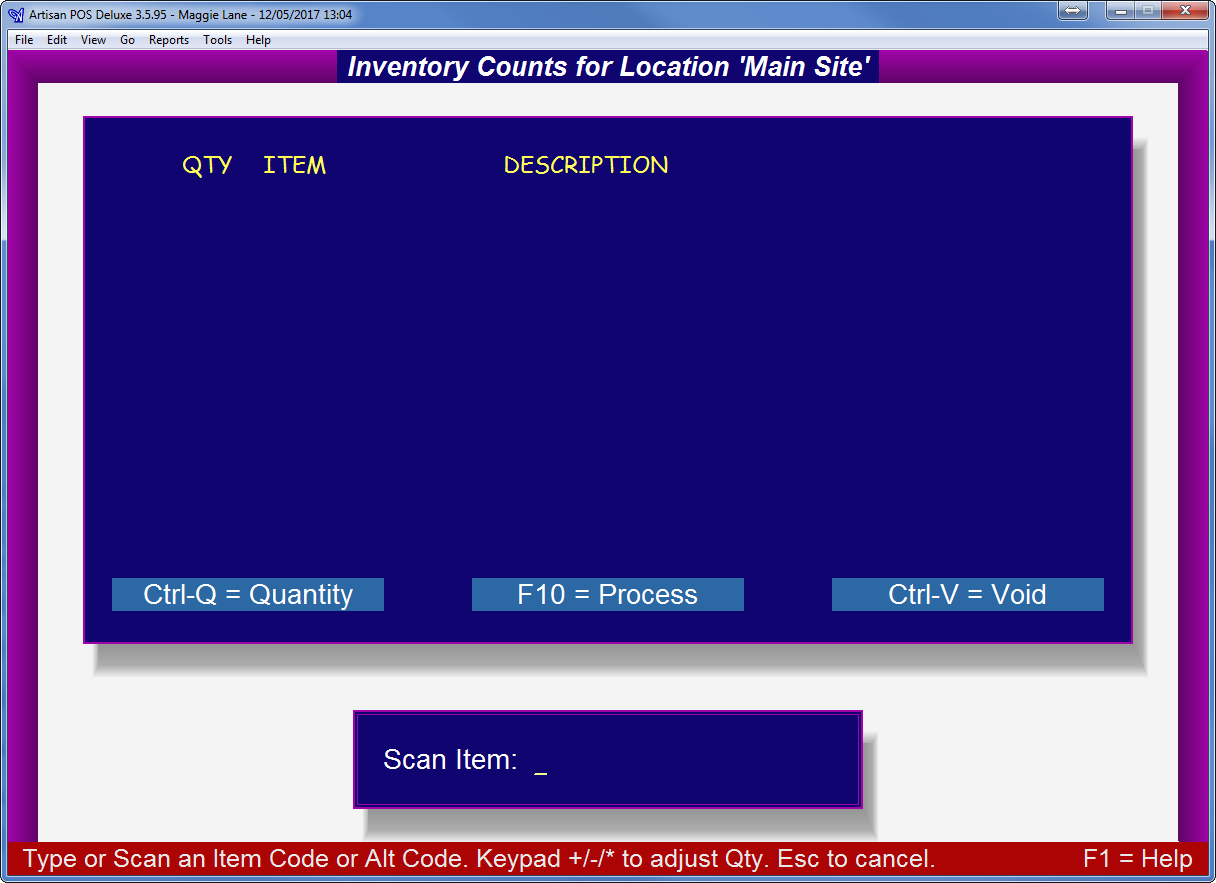
From Here, you can scan the items.
After you scan an item you can press the *, -, + keys on your NUMERIC keypad.
(Just like you can in the Sales Screen and Purchase Orders) This will prompt you for a quantity, subtract 1 from the quantity, or add one to the quantity.
Items scan at the bottom of the screen and scroll upward as you scan new items. You can adjust the entry for as long as the item is visible, but
once it has scrolled out of view, you will have to edit it on a separate screen.
This Process of Scanning, ALWAYS ADDS to your inventory total. So if you scanned one item an hour ago, and another one now, then Artisan will show that you have 2 in stock.
Click PROCESS to save this batch of scans and record these total as your current count. This does NOT affect your Quantity on Hand until you ACCEPT YOUR COUNTS on
another screen.
You can repeat scanning in this screen as often as you need by returning to this screen.
When you need to edit or check on the total, you can Review Counts & Make Adjustments
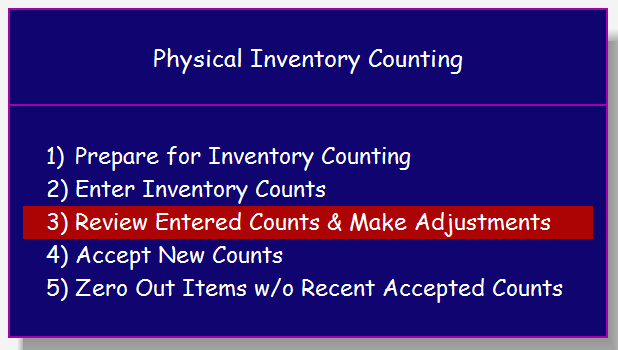
When you edit totals from this screen, you are editing the total count (it does not add). So if you see 4 in the list and you really have 5, edit the total to be 5.
If you were instead scanning the 5th item from the SCAN SCREEN, then you would scan one more item and it would ADD to your total.


